title: Import & Export of Databases description: Export a table, a database or a whole instance of MongoDB, PostgreSQL, MySQL, MariaDB, SQL Server or Oracle from the API Maker admin panel with the database's own programs (mongodump, pg_dump, mysqldump, mariadb-dump, SqlPackage, Data Pump), download the file, and import it, or a file those programs wrote, into any instance of the same kind : compared with the database of now first, and chosen table by table. The programs are installed from their publishers when needed, the version most compatible with each database unless an admin chose one on Sandbox Settings. keywords: import, export, backup, restore, compare database, diff database, restore table, merge rows, dump, mongodump, mongorestore, mongoexport, mongoimport, pg_dump, pg_restore, pg_dumpall, psql, mysqldump, mariadb-dump, SqlPackage, bacpac, Data Pump, expdp, impdp, DBMS_DATAPUMP, copy database, clone database, migrate data, __import_export_tools, API Maker
Import & Export
Copy a table, a database or a whole instance into one file. Then load that file into any instance of the same kind : another server, another database name, or a table under a new name. The database's own programs make and read the files (mongodump, pg_dump, mysqldump, SqlPackage, Data Pump). So a file holds what the database itself would write, and you can restore it by hand, without API Maker.
In short
- Export from the ⋮ menu of a card of APIs & Logic → Instance API (DB API) : an instance, a database, or the tables you select.
- Import a file into an instance of the same kind of database.
- The tools are downloaded from their publishers the first time they are needed.
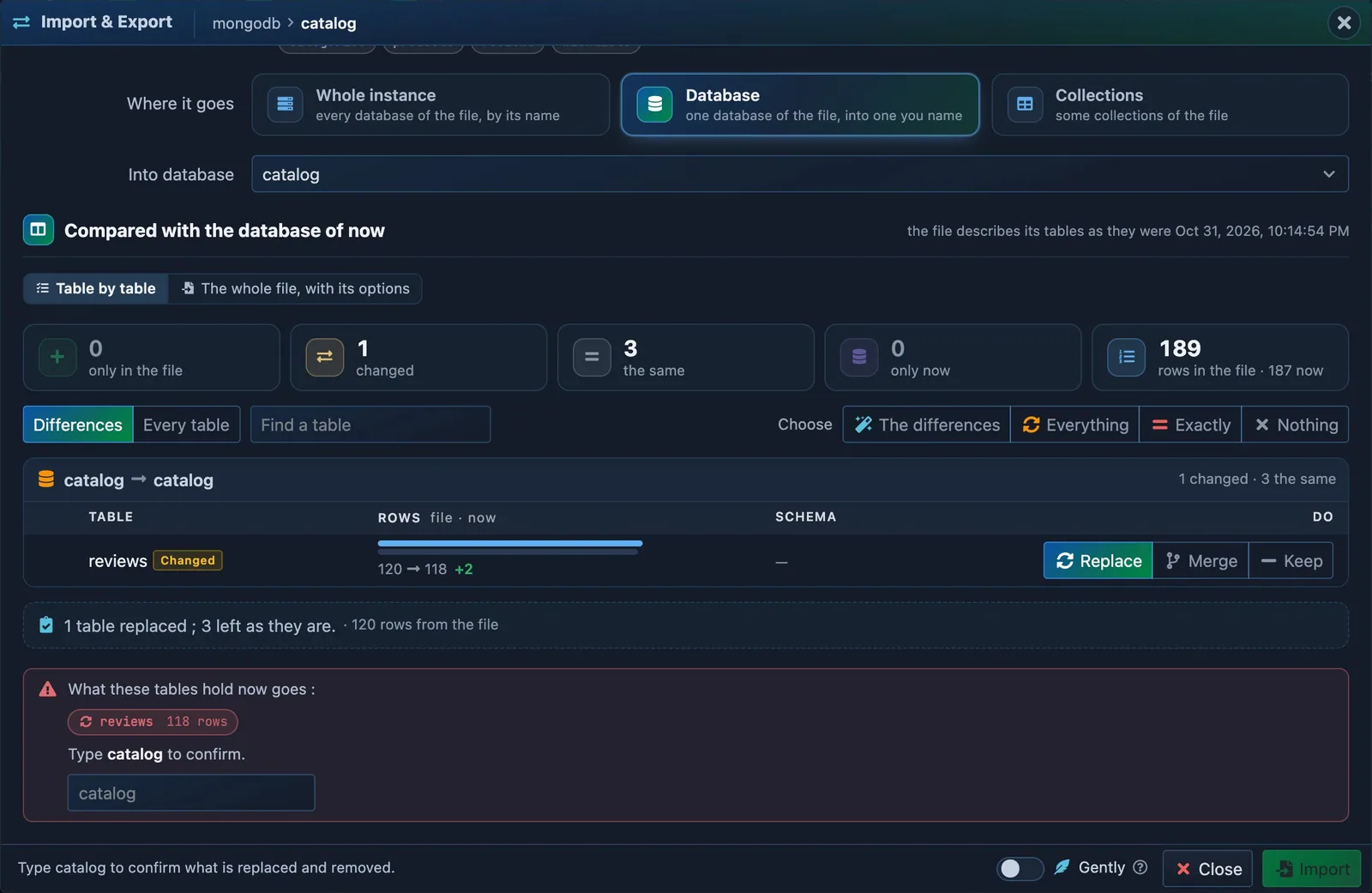
- Each table of the file, compared with the database.
- What will change.
| Where | The ⋮ menu of the cards : Instances (a whole instance), Databases (a database), Collections / Tables (the tables you selected). Each opens the Import & Export dialog : Export, Import and Jobs. |
| Databases | MongoDB, PostgreSQL, MySQL, MariaDB, SQL Server, Oracle. |
| Programs | mongodump, mongorestore, mongoexport, mongoimport · pg_dump, pg_restore, pg_dumpall, psql · mysqldump, mysql · mariadb-dump, mariadb · SqlPackage · Oracle Data Pump, run by the database itself. |
| Files | A .zip with the files of the program, manifest.json (what it holds) and README.txt (how to restore it by hand). An import also takes the program's own files : an archive of mongodump, a dump of pg_dump, a script of SQL, a .bacpac, a file of Data Pump, JSON or CSV. |
| Compare | Before an import, each table of the file beside the table of the database of now : new, changed (rows, columns, indexes), the same, there now only. You choose what each one becomes. |
| Jobs | Run in the background on a server, two at a time on each server, gently if you ask ; the dialog follows them, with their log. The files stay 24 hours by default, then only the job and its log. |
| Tools | Downloaded from their publishers the first time a job needs them, into __import_export_tools on each server : the version most compatible with each database, or the one an admin chose on Sandbox Settings. |
| Backups | The same exports, on schedules into S3 : Automatic Backup. |
| Clone | A new database from one you have, on the same server, with no file : Clone a Database. Its job is listed in Jobs too. |
| Masked names | Exports and imports follow the masked database names of your account. |
Export
- Open the ⋮ menu of the card and choose Export Instance, Export Database or Export Tables (Collections for MongoDB).
- What to export : the whole instance, one database (a schema for Oracle), or some tables of it.
- Form of the file : the forms of the database, below.
- Options : what the program of the database offers, each with its help behind the ?.
- Export. The job runs on the server : its progress, its log, then Download and Send to a storage (a storage of Automatic Backup, where the backups of that folder are listed and restored). The file stays on the server for the hours of Sandbox Settings (24 by default) — the dialog says until when — then it is removed : database dumps are large. The job and its log stay.
The top of the dialog names the program the jobs of the instance run on this server, with its version (18.6 · installed, 100.13.0 · of the server), or installed from its publisher on first use. It is checked again when a job ends : once the export which installed the program is done, the line says its version — as the tab Import & Export Tools of Sandbox Settings does.
Gently, beside the button, runs the programs of the job at the least priority of the server — nice 19 and the idle class of I/O on Linux, the background mode of macOS, the idle class of Windows : the APIs of the server go first, the job takes longer. It is there for imports too.
The download is a link the server makes for this file, good for 15 minutes : the browser downloads the file itself, a file of gigabytes included.
| Database | Forms of the file |
|---|---|
| MongoDB | Archive of mongodump (documents, indexes, options, views) ; for collections also JSON or CSV, one file per collection (mongoexport) |
| PostgreSQL | Dump of pg_dump (custom format, restored in parallel) or Script of SQL ; a whole instance adds the roles (pg_dumpall --globals-only) |
| MySQL, MariaDB | Script of mysqldump / mariadb-dump, compressed, with views, routines, triggers and, for a whole instance, the users and their grants |
| SQL Server | .bacpac of SqlPackage (schema and data), or a Script of T-SQL written by the server for a database or some tables : the tables, their rows and their foreign keys, which goes into any database |
| Oracle | File of Data Pump, written by the database itself (DBMS_DATAPUMP) : a schema, some tables, or the whole database |
No program on the server for SQL Server on ARM
Microsoft publishes SqlPackage for x86-64 only. On an ARM server, export a database of SQL Server as a Script of T-SQL.
Options of an export
| Database | Options |
|---|---|
| MongoDB | a filter of JSON for one collection, the fields of JSON or CSV, one array of JSON or a document per line, canonical extended JSON, the users and roles of the database, a point in time (oplog) for a whole replica set, views as collections, where to read from (a secondary keeps the load off the primary), collections at once |
| PostgreSQL | schema only, data only, without owners, without grants, without comments, INSERT statements (with column names) instead of COPY, DROP … IF EXISTS first, compression, only some schemas, without some tables, without the rows of some tables (logs, caches), the roles with or without their passwords |
| MySQL, MariaDB | schema only, data only, routines, triggers, events, DROP TABLE first, INSERT IGNORE or REPLACE, many rows or one row per INSERT, column names in each INSERT, a condition for the rows of one table, the users and their grants |
| SQL Server | check the schema before the data (SqlPackage), the time a statement may take ; for the script : schema only, data only, replace the tables, rows per INSERT |
| Oracle | objects and rows, rows only or objects only, a condition for the rows of one table, every table at one moment (FLASHBACK_SCN), statistics, the whole database (FULL), a dump an older Oracle reads, workers, the directory object |
Import
- Open the ⋮ menu and choose Import into Instance, Import into Database or Import Tables.
- The file : drop or choose a file of your computer. It is sent at once, no button to press : in pieces of 4 MB, a piece which fails on the way is sent again, up to 64 GB. If the sending fails, Send again. Another file replaces it ; an import whose file was sent but which was never started is removed from the server when you take another file or close the dialog.
- What it holds : the kind of the file, the instance and the version of the database it comes from, the program which made it, its size and SHA-256, its databases and their tables.
- Where it goes : every database of the file under its own name, one database of the file into the database you name (made when it is not there), or some tables of the file. One table can take another name (MongoDB, MySQL, MariaDB, Oracle) : it is a copy, which goes in whole.
- Compared with the database of now : Table by table (below), or The whole file, with its options.
- Import.
In a whole import, an option which removes or replaces what is there — replace the database, replace the collections, remove the objects first, empty or replace the tables, delete the documents of the file — asks you to type the name of the database before the import starts.
Table by table
Once the file is read, each of its tables is set beside the table of the same name in the database it goes into : the rows, the bytes, the columns and the indexes of both. An export of API Maker describes its tables as they were (its manifest.json), so the comparison is exact ; the database of now is read from its catalog, its rows counted up to 200,000 rows a table (estimated beyond).
| The table is | Means | You choose |
|---|---|---|
| New | the database of now does not have it | Replace (it is made as the file has it) or Keep (left out) |
| Changed | its rows, columns or indexes differ : the difference of the rows is shown, each column and index added, removed or changed | Replace, Merge or Keep |
| The same | the same rows, columns and indexes | Keep, or Replace to have it again |
| There now only | the file does not have it | Keep, or Remove it |
- Replace : the table becomes the one of the file — its rows, columns and indexes. What it holds now goes.
- Merge : the rows of the file which are not there are added ; the rows there now stay as they are. MongoDB adds the documents whose
_idis not there ; PostgreSQL, MySQL, MariaDB, SQL Server and Oracle the rows whose key is not there (a table of PostgreSQL without a key takes the rows it does not have). - Keep : the table is left as it is.
- Remove : a table only the database has is dropped, with its rows.
Restore the backup (the database as the file has it), Only the changes (the new and changed tables, nothing else touched) and Nothing choose for every table at once ; a search and Only what differs narrow the list (a table you chose stays in it). When a choice replaces or removes rows, the dialog names those tables with their rows and asks for the name of the database. After the import, each table chosen is counted again : its rows now beside the rows of the file, ok when they agree.
A file of some tables only — an export of a few tables or collections, a file of JSON, CSV or a .bson of one collection — says nothing of the other tables of the database : they are not in the comparison, none of them is There now only, and none can be removed by the import. The dialog says so above the list. Such an export dropped back into the dialog opens the import on those tables.
A file whose tables can not be read before it is imported goes in whole, with the options below ; a file without the description of an export of API Maker is compared by the names of its tables. A script of SQL of PostgreSQL is compared, to be seen, and goes in whole : pg_restore takes some tables of a dump of its own format only. A file of JSON, CSV or a .bson of MongoDB goes in whole too, into the collection of its name (people.json : people) or the one you name. So does a table imported under another name : it is a copy, which changes nothing there now. A file of JSON or CSV of no document (an empty collection exported) imports nothing and does not fail ; with replace the collections, the collection is made empty.
| Database | Options of an import |
|---|---|
| MongoDB | replace the collections (--drop), without the indexes, in the order of the file, stop at the first error, without the validators, the users and roles of the file, keep the UUIDs of the collections ; for JSON and CSV : insert, upsert, merge or delete by the keys you name, without empty fields of CSV ; writers per collection |
| PostgreSQL | create or replace the database, remove the objects first, without owners, without grants, schema only, data only, without triggers while the rows go in, all or nothing (one transaction), stop at the first error, connections in parallel, the roles of the file |
| MySQL, MariaDB | create or replace the database, go on past errors (--force), the character set of a new database, the users and their grants |
| SQL Server | create or replace the database, stop at the first error of a script, the time a statement may take |
| Oracle | tables there already (skip, append the rows, empty them first, replace them), objects and rows, rows only or objects only, without creating the user, the directory object |
What each database takes
- PostgreSQL : pg_restore reads a dump of its own version or older ; the job runs a pg_restore at least as new as the dump and the server. Some tables of a dump come with their keys, indexes, sequences, defaults, triggers and grants.
- SQL Server : SqlPackage imports a
.bacpacinto a new or empty database only — choose Replace the database to import over one which holds tables. A script and a.bacpacgo in whole. - Oracle : the dump goes through a directory object of the database (
DATA_PUMP_DIRby default), which the user of the instance needs to read and write. A schema can go into another schema, a table under another name. One moment reads the change number of now withDBMS_FLASHBACK: a user withoutEXECUTEon it exports without one moment (GRANT EXECUTE ON SYS.DBMS_FLASHBACK TO <user>). - MySQL and MariaDB read each other's scripts.
Masked database names
With masked database names, your account calls a database by the name of the project (shop), and the server holds it under another name (shop_alice). Import & Export follows the mapping. So a file goes from one developer to another, or to production, without renaming anything.
| Export | Reads the database of the server (shop_alice). The file names it by the name of the project (shop). manifest.json also keeps the name of the server (stored). |
| Import | A database shop of the file goes into the database your account maps shop to : shop_bob for Bob. The log says so. |
| Compare | The tables of the file are compared with the database of the server. The dialog names it : shop_bob on this server. |
| Scripts of SQL | A script of mysqldump, pg_dump or SQL Server which switches to a database or makes one (USE shop, \connect shop, CREATE DATABASE shop) is changed to the name of the server before it runs. |
| A whole instance | The file holds the databases your account sees, each under the name of the project. A database of the server which a masked name hides (production shop, when your shop is shop_alice) is left out, and no import writes into it. MongoDB writes one archive per database. Oracle exports the schemas your account sees, not the whole database (FULL). |
| Two into one | An import refuses two databases of the file which would go into the same database of the server. Import them one at a time. |
The file of an export
shop-pg-shop-20261031-012233.zip
├── manifest.json     what the file holds : the kind of database, its version, the instance, the scope,
│                     the program, the databases and tables, the size and SHA-256 of each entry
├── README.txt        how to restore it by hand, with the commands of the program
└── shop.dump         the file of the program : .archive.gz, .dump, .sql.gz, .bacpac, .dmp, .json, .csv
The SHA-256 of each entry is checked when the file is imported. The name says the instance, the database and the time of the export, in UTC.
Jobs
The Jobs tab lists the exports, imports and clones of the instance, newest first : what each covers, its state, the size of its file and until when it stays (or removed), when and where it ran, and how long it took. On each row : Download and Send to a storage while the file of an export is there, the log, Stop a job which runs, Remove a job with its files and log.
Tick some jobs and Remove them at once, or Clear all : every job of the instance which does not run. A job which runs is stopped first ; it can not be ticked.
- An export runs on the server which started it, an import of an export where its file is ; the files stay on that server, and the other servers fetch them from it when they serve a download.
- Two jobs run at a time on each server ; the others wait in the queue.
- The files of a job are removed from the server 24 hours after it ended : change it on Sandbox Settings, from 1 to 720 hours. The job and its log stay 30 days (or as long as the files, when that is longer), unless you remove them sooner. An import which was never started goes whole after the same hours.
- A job which was running when its server stopped is marked failed when the server starts again.
- The restores of Automatic Backup are imports too : they are listed here, and in the log of Automatic Backup.
The tools on Sandbox Settings
Operations → Sandbox Settings, tab Import & Export Tools (?am_sandbox_tab=tools) : one row per tool.
| Tool | Publisher | Downloaded from |
|---|---|---|
| MongoDB Database Tools | MongoDB, Inc. | downloads.mongodb.org : macOS, Windows, and the build for the Linux of the server (Ubuntu, Debian, Red Hat and its kin, Amazon Linux, SUSE) |
| PostgreSQL client | The PostgreSQL Global Development Group | the PostgreSQL apt repository (Debian, Ubuntu), EnterpriseDB (macOS, Windows) ; on other Linux, the packages of the system |
| MySQL client | Oracle Corporation | cdn.mysql.com — 8.4 LTS is recommended : the clients of MySQL 9 and later no longer log in with mysql_native_password |
| MariaDB client | MariaDB Foundation | downloads.mariadb.org (Linux x86-64, Windows) |
| SqlPackage | Microsoft | the releases of SqlPackage (x86-64) |
- Your versions : the versions every server installs for your account, checked against the checksum the publisher gives. A chip says where the servers stand : ready, installing (with its share), or failed (with the error, and a button to try again). Up to 6 versions of each tool.
-
The jobs run : Automatic takes the version most compatible with the server of each database : its own line, from this server or its PATH, else installed from the publisher then ; else the nearest version which suits. Or choose one version.
Tool The most compatible PostgreSQL client the major version of the server (pg_dump 16 for PostgreSQL 16) : a dump loads into a server of its version or newer ; else the nearest newer one MySQL client the 8.4 client for MySQL 8 (the clients of 9 and later no longer log in with mysql_native_password), the line of the server for MySQL 9 and laterMariaDB client the line of the server (mariadb-dump 11.4 for MariaDB 11.4) : a newer one begins its scripts with what older servers refuse MongoDB Database Tools, SqlPackage the newest : they read every version of their servers -
This server : first the version it runs now, which it finds by itself — ✓ with its version, yours, installed by a job, listed by another admin or on the PATH ; installed from the publisher on first use when nothing is there. Then the program its PATH finds and the versions it has besides yours. The page looks again each time the tab is shown, when you come back to the browser tab, and with ⟳ in the title of the card : a version a job just installed shows at once. Each admin has their own versions ; a version stays on a server while one admin lists it or one job runs on it.
- Automatic names the version this server runs now (
Automatic · 8.4.13) : the one a job runs when its database needs no other version. - Files of the jobs stay : how many hours the files of an export or an import stay after the job ended ; then only the job and its log.
Where a publisher has no build for a server — MariaDB on macOS and on Linux ARM, SqlPackage on Linux ARM, MySQL and MariaDB on Windows ARM — the row says so, and the jobs use the programs the PATH of the server finds.
The tools are in __import_export_tools next to the other folders of the installation, the files of the jobs in __import_export_files. A server without internet uses the programs on its PATH : install them with the package manager of the server.
The files hold your data
An export holds every row of what it covers. The download link opens without signing in for 15 minutes : share it only with who may read the data. The passwords of the instances never go on a command line — the programs read them from files only the server's user can read, removed when the job ends — and they are hidden in the logs.
Related
- Clone a Database : a new database from one you have, on the same server.
- Table designer : design tables, run a SQL script, drop a table.
- Database migration scripts : change the structure of the databases in code, once per environment.
- Sandbox Settings : the page of the tools.